Smartphone video intercom for your gate
No cameras or intercom panels to buy. The visitor, the resident and the guard each use a screen they already have.
The only add-on is a low-cost Shelly smart relay at the gate. The QR intercom works at entrances with that relay installed. About gate automation →
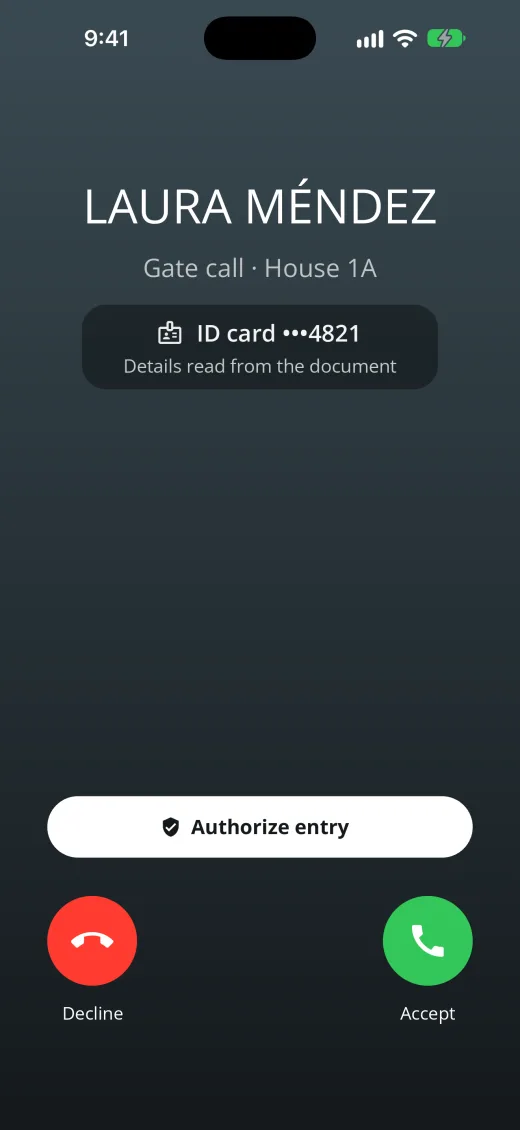
The resident answers on their phone
The call rings like a regular phone call, even on a locked iPhone; on Android it arrives as a notification. Both see and hear each other on video. When the resident taps Authorize entry, the call ends and the visitor can go in.
Reception answers from the web console
The guard sees and talks to the visitor on a tablet or PC, registers the visit, and the call ends. With the relay, the guard opens the gate from the same screen.
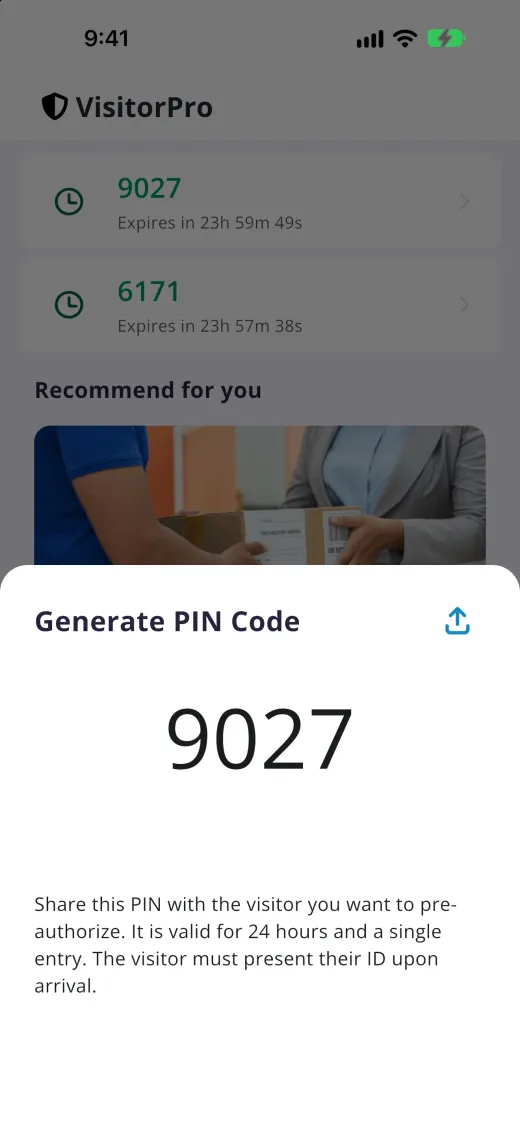
Or skip the call with a PIN
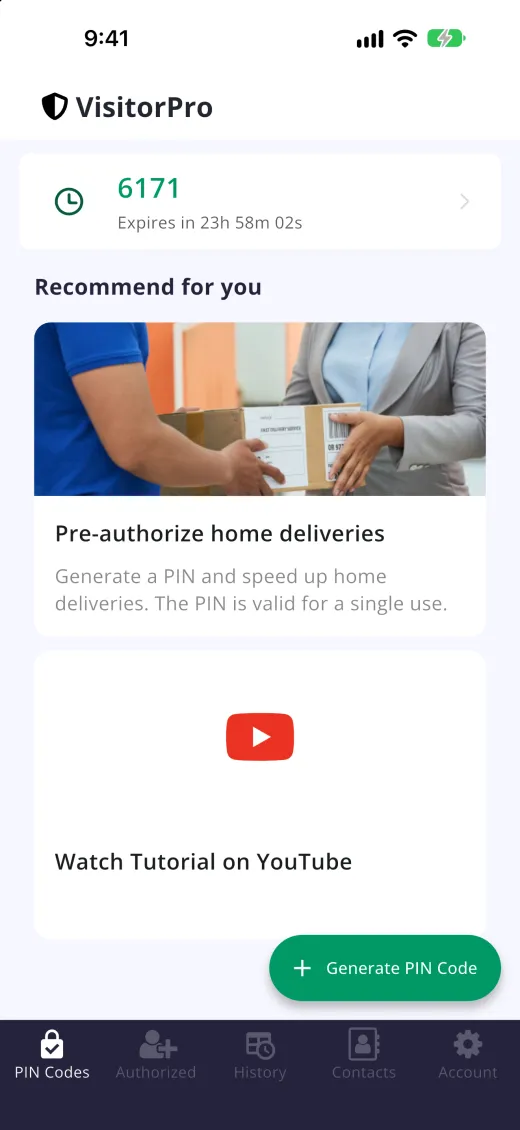
Residents can share a PIN with friends, rideshare drivers, and delivery couriers.
Step by step: how a visitor gets in
Scan the QR
The phone camera opens a page in the browser: no app, no account. Each entrance has its own QR and gate.
Location check
The visitor must be within 500 m of the entrance, or the page stops. You can turn this off per entrance, for testing only.
ID scan, if you turn it on
The visitor scans a photo ID with their own phone and VisitorPro reads it into the visit (details below). No ID, or 3 failed scans: front desk call only.
Choose how to get in
A resident's PIN, a call to the resident by unit number, or a call to the front desk. Only the options you allowed appear.
Approval
A valid PIN is approved at once. A resident taps Authorize entry during the call. The front desk identifies the visitor and registers the visit.
The gate opens
An Open gate button appears on the visitor's phone, valid once for 10 minutes and only for that gate. When the front desk approves, the agent opens the gate from the console.
Set it up in your admin panel, in this order
- 1
Gates first. Set up the relay on each gate (it needs Wi-Fi at the gate) and check it with Test connection. See How gate automation works.
- 2
Access Points › New. Name it, choose Pedestrian or Vehicle, drag the map marker to the entrance, choose its gate and the options: Allow PIN entry, intercom with the agent, intercom with the owner. It shows Self-service active when complete.
- 3
Download QR and print it. Place it where visitors stop. If you regenerate a QR later, the printed one stops working.
- 4
Configuration › Self-service. Turn on Visitor self-service (QR), then Intercom to front desk, Intercom to residents, or both. Optional: Visitor ID scan and how long to keep its data.
- 5
Tell residents and agents, then test it. Residents install or update the app, sign in and allow notifications; agents sign in to the web console. Then try a PIN, a resident call and a front desk call at the gate.
What's included
Video intercom to the front desk and residents, QR self-service, ID scanning and gate opening.
The relay (one per gate) and your electrician's work. VisitorPro does not sell or install hardware.
Self-service ID scanning for visitors
VisitorPro reads the document type, country, number and name into the visit log, where guards and administrators find them.
Privacy
- The ID photo is encrypted, kept only during the visit (2 hours at most), then deleted from our servers.
- Document type, country, number and name stay with the visit for the period you choose (30 to 730 days), then are erased.
- VisitorPro reads the document. It does not confirm who the person is.
- Frequent visitors can choose to keep their ID on their own phone for 90 days to check in faster.
Video intercom questions
Could someone use a photo of the QR from home?
The location check stops requests from more than 500 m away, but it is only a first filter: a phone's location can be faked. What protects the gate is that nothing opens without a valid PIN or a person's approval.
What if the internet at the gate goes down?
The visitor is told the gate could not be reached and can call the front desk. If VisitorPro cannot confirm the command arrived, it does not resend it, so the gate never opens twice. The gate's own button and remotes keep working.